
Written by Paul Worrall
My wife Lucy is a watercolour painter — proper watercolour, paper and brushes and pigment, the kind that takes real patience. She’s been curious about Procreate for a while, the way a lot of traditional artists are once they see what’s actually possible on an iPad, and researching this guide has given me a much clearer picture of what I’d actualy recommend to her versus what I’d recommend to an illustrator who draws digitaly for a living. The answer turns out to be different, and that difference is worth explaining properly rather than just pointing everyone at the same app.
I’ve spent sixteen years in the UK art supplies industry — nearly a decade of that running digital marketing at ARTdiscount, one of the UK’s largest online art retailers — and I now run Discount Art Supplies, used by over 36,000 UK artists every week. The software side of our community comes up constanty — which apps people actually use, how they combine digital and traditional practise, whether it’s worth the switch. Here’s the picture of what’s genuinly worth downloading in a market that’s changed considerably over the last twelve months, primarily because Adobe Fresco is now completely free.
⭐ Best Drawing Apps for iPad — Quick Picks
Best overall: Procreate — one-time £12.99 purchase, the reference standard for iPad illustration, rightly so.
Best free app: Adobe Fresco — now completely free with all features unlocked, genuinly changes the calculation.
Best for comic and manga artists: Clip Studio Paint — the industry standard for comics, webtoons and manga.
Best for vector work: Concepts — infinite canvas, vector-like strokes, ideal for design and architecture sketching.
Best subscription-free vector alternative: Affinity Designer 2 — serious vector tools, one-off purchase, no Adobe account required.
Best for beginners: Autodesk Sketchbook — completely free, cleaner interface than Fresco, genuinly good starting point.
The One Thing That’s Changed Everything in the Last Year
Adobe Fresco is now completely free on iPad. Not free with a watermark. Not free with limited brushes. Completely free — all features, all Live Brushes, all vector tools, all cloud sync, no subscription. That’s a major shift from the old freemium model and it genuinly changes the question “what should I download first?” for anyone who hasn’t picked an app yet. If you’re a traditional watercolour painter curious about digital, as my wife is, starting with Fresco costs nothing and the Live Brushes — which genuinely simulate the way watercolour pigment moves through wet paper — are the closest any digital tool has come to the thing she actually loves about her traditional practice.
That said, Procreate is still the answer for most people once they’re past the “I’m just trying this out” stage, and the reasons for that are worth explaining properly rather than just stating it.
Procreate — The Best iPad Drawing App for Most Artists
Procreate costs £12.99 as a one-time purchase, which is one of the best value propositions in creative software at any price. No subscription, no ongoing cost, no features locked behind an upgrade tier. You pay once and the app — including every brush, every feature, every future update — is yours. Years on from its launch, Procreate remains the app most serious iPad artists reach for first, and the reasons are genuinly consistent across every independent review I’ve read: the brush engine is unmatched at this price, Apple Pencil integration is supurb with full support for the Pencil Pro’s barrel roll and squeeze gesture, and the interface stays out of the way in a way that lets you focus on the drawing rather than the tools.
The genuine limitations are worth knowing upfront. Procreate is raster-only — there’s no vector mode, which means scaling artwork up significantly will show pixelation. If you need crisp, infinitely scalable illustrations for logo work or large-format print, you’ll want Concepts or Affinity Designer alongside it. There’s also no desktop version — Procreate is iPad and iPhone only, which matters if your workflow involves handing files to a Mac-based editing setup. And the layer count is limited by your iPad’s RAM, which means large canvases with dozens of layers on an older device can hit a ceiling. These are known limitations rather than surprises, and for the vast majority of illustrators doing character art, editorial illustration, concept sketching and finished painting, none of them come up in practise.
If you’ve never drawn digitally before and you’re buying an iPad partly to try it, Procreate is where to start.
Adobe Fresco — Now the Best Free iPad Drawing App

The biggest single change in this space over the last year is that Adobe Fresco removed its paywall entirely. All features are now free with an Adobe account, including the Live Brushes that genuinly set it apart from everything else — brushes that simulate the physical behaviour of watercolour pigment spreading into wet paper, oil paint mixing wet-into-wet, and ink bleeding into absorbent surfaces. These aren’t just textures applied after the fact. They behave the way real paint behaves, which is the thing that’s made Fresco genuinly interesting to traditional painters who thought digital was inherently too clean and precise to feel like their own practice.
The catch is the Adobe ecosystem. Fresco works most naturally if you already use Photoshop and Illustrator, since files sync through Creative Cloud. If you’re not an Adobe user, the cloud integration feels like excess overhead rather than a benefit, though the drawing tools stand on their own regardless. The interface is also less polished than Procreate’s — some artists find brush navigation and tool layout slightly less intuitive, and a few reviewers describe it as occasionally feeling clunky compared to the speed of Procreate’s gesture system. None of that outweighs the fact that it’s now free, and the recent iPad updates have added a Pose tool, redesigned brush panels, symmetry guides and new shape tools that have closed the gap with Procreate’s interface quality meaningfully.
For my wife specifically — traditional watercolour painter wanting to try digital — I’d tell her to start here before spending anything.
Clip Studio Paint — The Standard for Comics and Manga

If you draw comics, manga, webtoons or anything involving panel layouts, speech bubbles, perspective rulers and sequential storytelling, Clip Studio Paint is the industry standard and has been for years — not because it’s the flashiest option but because the specialised tools it offers for this specific workflow genuinly don’t exist at the same level anywhere else. 3D reference models you can pose and use as underdrawing references. Vector layers you can resize without quality loss. Perspective rulers that build accurate vanishing point grids automaticaly. Panel layout tools that treat the page as a publishing document rather than just a canvas. These are tools professional manga studios and webtoon creators use for production work, not hobby features.
For illustrators who aren’t specifically doing comics, Clip Studio Paint’s learning curve is genuinly steeper than Procreate’s and the interface is more complex than most people need for straightforward painting or character illustration. Procreate will get you there faster and with less friction for that kind of work. But for comics specifically — there’s no contest.
Concepts — Best for Sketching and Design Work

Concepts takes a different approach to everything else on this list — an infinite canvas with vector-like strokes that remain editable and scalable after you’ve drawn them. For product designers, architects, UX designers, and anyone doing exploratory sketching where you want to be able to scale, move and adjust individual elements rather than committing marks to a fixed raster canvas, Concepts is genuinly the most flexible tool available on iPad. It’s also excellent for thumbnail and composition sketching where you want to freely scale and rearrange elements without committing to a fixed canvas size. Less suited to finished painterly illustration; better suited to the thinking and planning stages of creative work.
Affinity Designer 2 — Best Subscription-Free Vector App

If you need proper, professional-grade vector illustration on iPad without touching an Adobe subscription, Affinity Designer 2 is the answer. One-off purchase, no ongoing cost, exports to industry-standard formats, and genuinly capable of professional logo and vector illustration work. The iPad version sits comfortably alongside the desktop version — files move between the two without friction. For designers who know they need vector but don’t want Adobe Illustrator’s subscription cost, Affinity Designer is the well-established alternative we’ve covered in our Illustrator alternatives guide too.
Autodesk Sketchbook — Best for Beginners
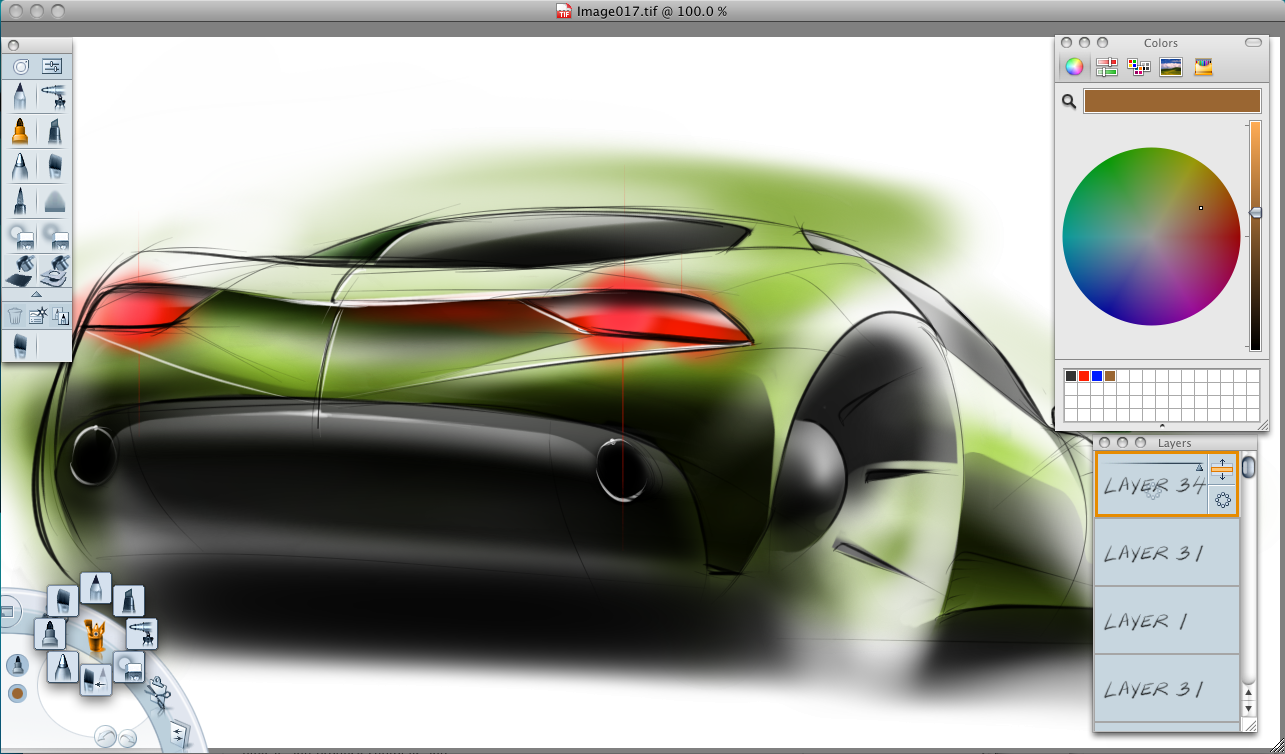
Autodesk Sketchbook is completely free and has a cleaner, less overwhelming interface than either Procreate or Fresco for someone who has never used a drawing app before. The Predictive Stroke tool — which smooths and corrects lines as you draw — is a genuinly useful confidence-builder for people whose first digital marks feel shaky and uncertain. It’s not where most artists end up long-term, but as a first step into digital drawing on iPad without spending anything or navigating a complex interface, Sketchbook is a solid recommendation ahead of jumping straight into the deeper feature sets of Procreate or Clip Studio Paint.
Which App Is Right for You?
For most artists — whether you’re a hobbyist experimenter or a working illustrator — Procreate is the answer. The one-time cost, the brush quality and the Apple Pencil integration are unmatched at that price point. If you want to spend nothing and you’re specifically interested in traditional media simulation, start with Adobe Fresco’s now-free Live Brushes. If you draw comics or manga professionally, Clip Studio Paint is the tool your industry uses. If you need vector for design or logo work, Affinity Designer handles it without an Adobe subscription. And if you’ve never drawn digitally at all, Autodesk Sketchbook removes the learning curve for the first few sessions without costing anything.
What I’d tell Lucy, if she’s reading this: start with Fresco, specifically for the watercolour Live Brushes. See if it feels anything like paper. If it does, buy Procreate. If it doesn’t, at least you haven’t spent anything finding out.
More Digital Tools for Artists
- The Best Tablets with a Pen for Drawing
- The Best Laptops for Drawing and Digital Art
- Procreate vs Adobe Fresco — Which Is Right for Digital Artists?
- The Best Adobe Illustrator Alternatives for Artists
- The Best Drawing Tablet for UK Artists
- Discount Art Supplies — Compare Prices Across All UK Art Retailers